What Is a USB Flash Drive? Benefits, Specifications, and Uses Explained
August 29, 2026 · 16 min read
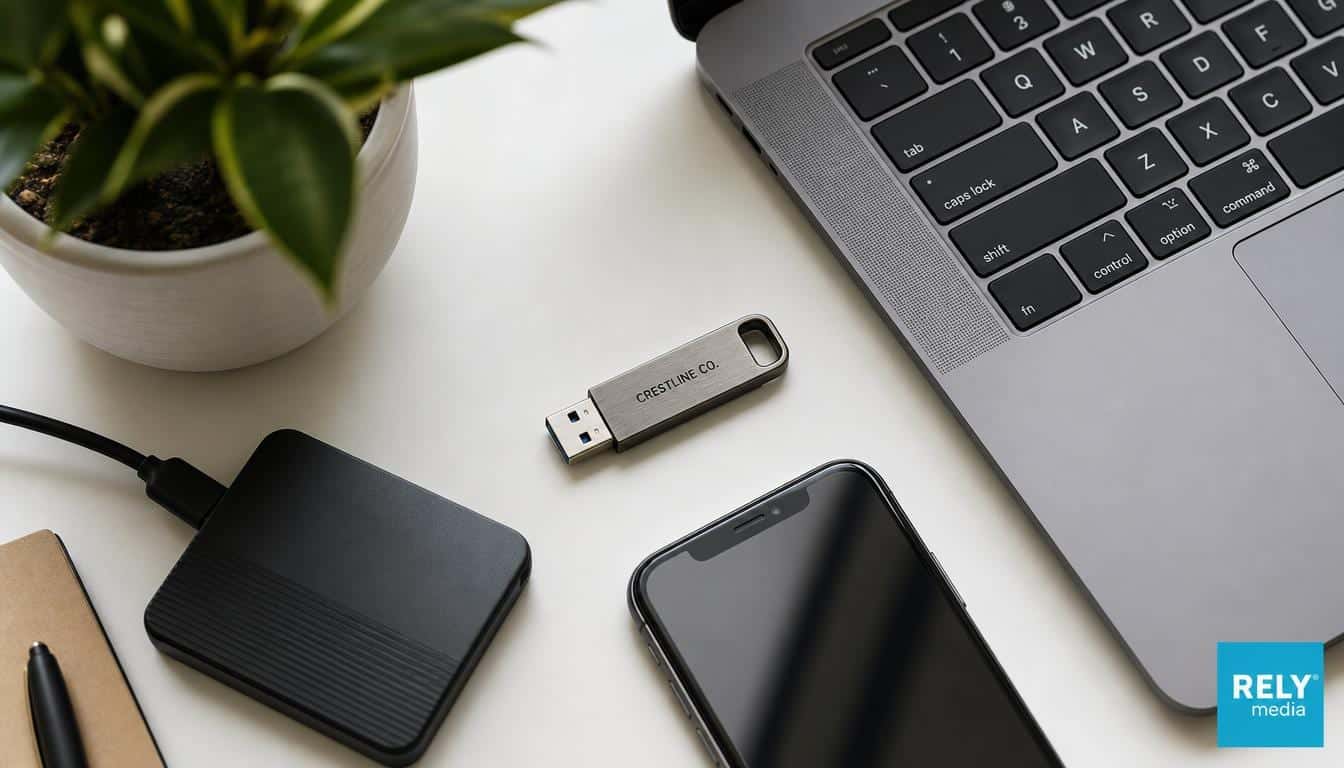
A USB flash drive solves several everyday storage problems. It can move documents between computers, carry presentations, hold photos, create emergency boot media, or provide a portable backup when cloud access is inconvenient.
What Is a USB Flash Drive?
A USB flash drive is a compact data storage device that uses flash memory rather than moving parts. Because flash memory is non-volatile memory, stored information remains available after you unplug the device.
People also call these products a USB drive, thumb drive, pen drive, USB stick, or flash disk. Those names usually refer to the same type of removable storage.
USB means Universal Serial Bus. A drive uses a USB interface and USB connector to communicate with a compatible USB port on a host device. Once connected, the operating system usually recognizes it automatically. That plug-and-play behavior supports quick data transfer and file sharing.
Explore RELYmedia custom flash drives for branded storage tailored to campaigns, events, teams, or customers.
What Does a USB Drive Do?
A flash drive lets you store data, save files, and retrieve data later. You can also:
- Transfer files between compatible devices
- Copy files for travel or meetings
- Move files without cloud storage
- Create folders and organize materials
- Rename files and manage versions
- Delete files you no longer need
- Keep a file backup or data backup
- Carry a secure copy of documents
- Support media sharing for photos, audio, and video
That flexibility keeps USB drives useful alongside cloud storage and SSDs.
How USB Flash Drives Work
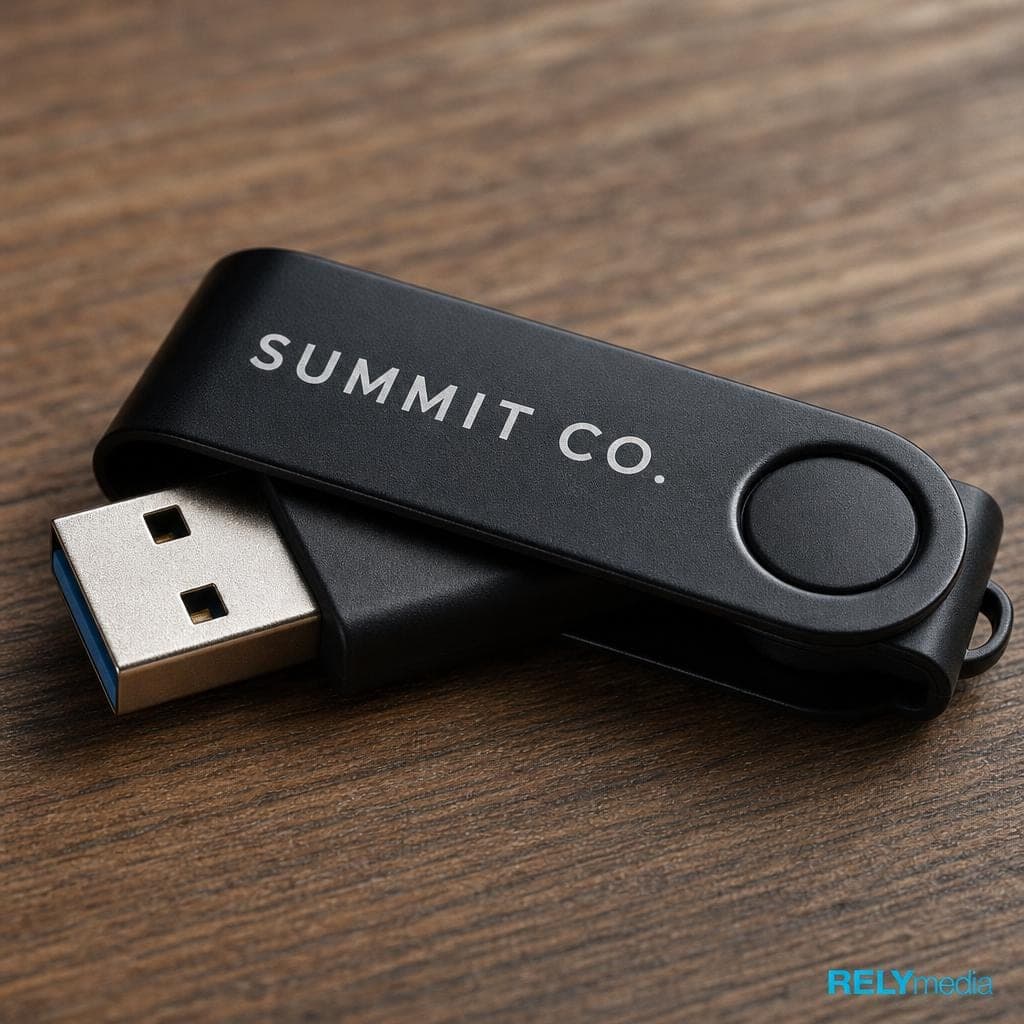
Inside the case, several storage components handle power, communication, and storage.
The controller, or USB controller, directs traffic between the host device and the NAND flash memory chips. Those chips contain memory cells inside a memory array. Each cell stores one or more bits.
The controller performs error checking, error correction, and wear leveling. Wear leveling distributes writes across available cells, helping manage finite write cycles and erase cycles.
A printed circuit board, or PCB, connects the electronics. A crystal oscillator supplies timing signals, while power supply circuitry regulates incoming power.
Memory quality influences memory density, memory speed, and storage performance.
USB Flash Drive Specifications That Matter
Focus on four areas: connector type, USB standard, storage capacity, and file system.
USB-A, USB-C, micro-USB, and Lightning
USB-A remains common on desktops and many laptops. USB-C appears on newer computers, tablets, and phones. Some specialty drives use micro-USB or Lightning for compatible mobile devices.
Connector shape and speed are different concepts. USB-IF publishes separate specifications for USB Type-C connectors and USB performance standards. USB 3.2 defines several data rates, while USB-C describes a connector system.
For USB flash drive compatibility, remember that USB-C does not automatically guarantee the fastest USB speed.
USB 2.0, USB 3.0, and Transfer Speed
USB 2.0 and USB 3.0 refer to different generations of the USB protocol and its performance capabilities. Actual data transfer speed depends on several factors:
- Flash memory chips
- Controller quality
- Host device
- File size and count
- Memory speed
- USB standard
- System workload
For large transfers, prioritize measured performance over connector appearance.
Browse RELYmedia's Technology & Flash Drives category to compare connector, capacity, branding, quantity, and turnaround options.
USB Flash Drive Storage Capacity
Storage capacity tells you how much information a drive can hold. Capacities are measured in gigabytes and terabytes.
| Capacity | Good fit |
|---|---|
| 64GB USB flash drive | Documents, presentations, basic photo storage, personal files |
| 128GB USB flash drive | Photo collections, music storage, work files |
| 256GB USB flash drive | Multimedia storage, gaming files, document archives |
| 512GB USB flash drive | Video libraries, software collections, larger projects |
| 1TB USB flash drive | Extensive media, archives, high-capacity portable storage |
Match capacity to your storage needs. Documents need less space than large video or multimedia projects.
Need branded storage in several capacities? Ask RELYmedia to compare practical size options before ordering for your audience.
USB Flash Drive File Systems and Compatibility
A file system controls how a device organizes, reads, and writes information. The choice affects file system compatibility and support for large files.
| File system | Best fit | Main consideration |
|---|---|---|
| FAT32 | Broad compatibility | 4GB file size limit |
| exFAT | Windows and macOS sharing | Supports large files |
| NTFS | Windows-focused use | Limited native Mac writing support |
| macOS Extended (Journaled) | Mac workflows | Limited Windows compatibility |
Apple's Disk Utility supports Mac OS Extended, MS-DOS FAT, and exFAT. Apple identifies FAT and exFAT as Windows-compatible formats and notes that macOS may read NTFS without writing to it natively.
For mixed Windows and Mac compatibility, exFAT is often the best choice when dealing with large files.
Key Benefits of USB Flash Drives
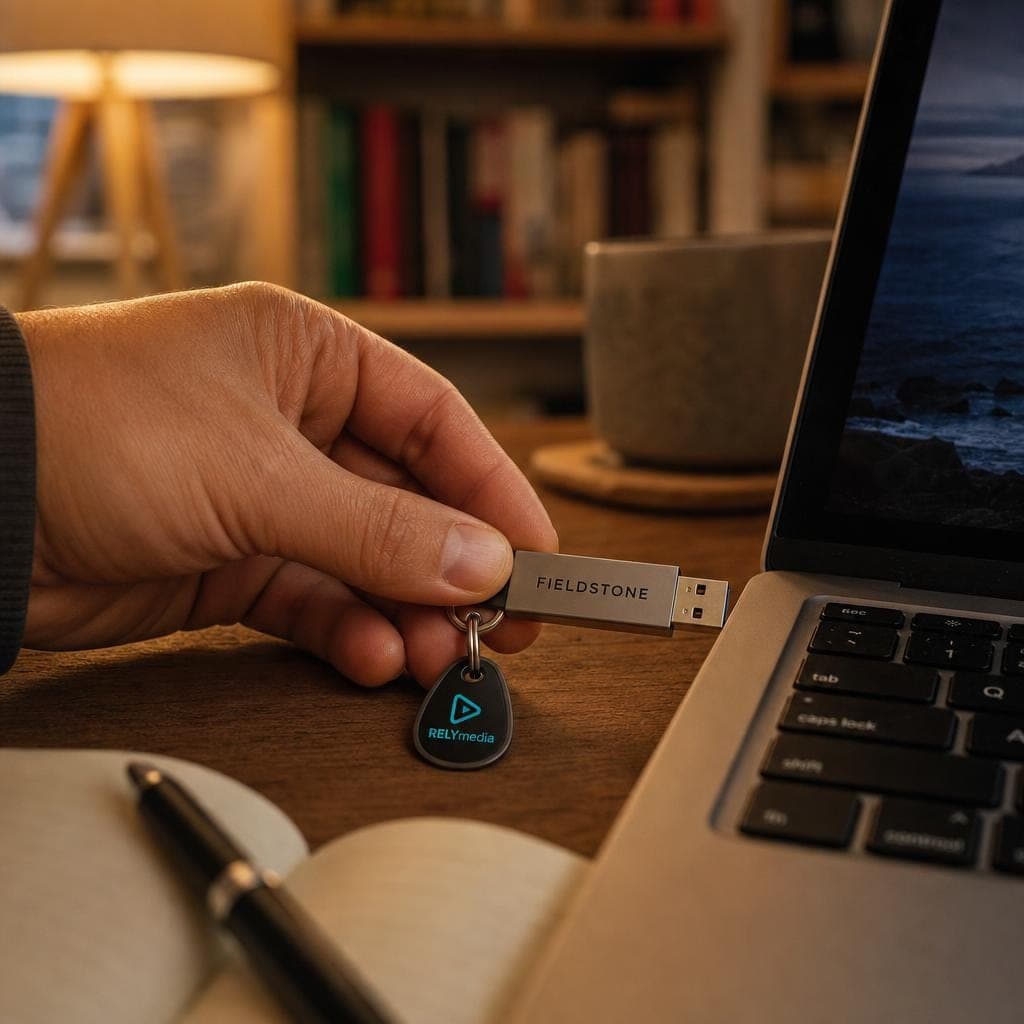
Portability and Wide Compatibility
Portability is a major advantage. A tiny drive fits inside a pocket, kit, folder, or mailer.
Flash drives offer wide compatibility with the right connector and file system, including many laptops, desktops, and mobile devices.
Durability and Data Retention
Flash drives have few moving parts, so they handle physical shock better than many mechanical hard drive designs. Still, connector damage and long-term physical wear can cause drive failure.
Non-volatile storage supports data retention without continuous power.
Fast, Offline File Transfer
A drive supports quick data transfers when internet access is slow, blocked, unavailable, or unnecessary. Direct file transfer can also avoid uploading sensitive information to third-party services.
Common Uses for USB Flash Drives
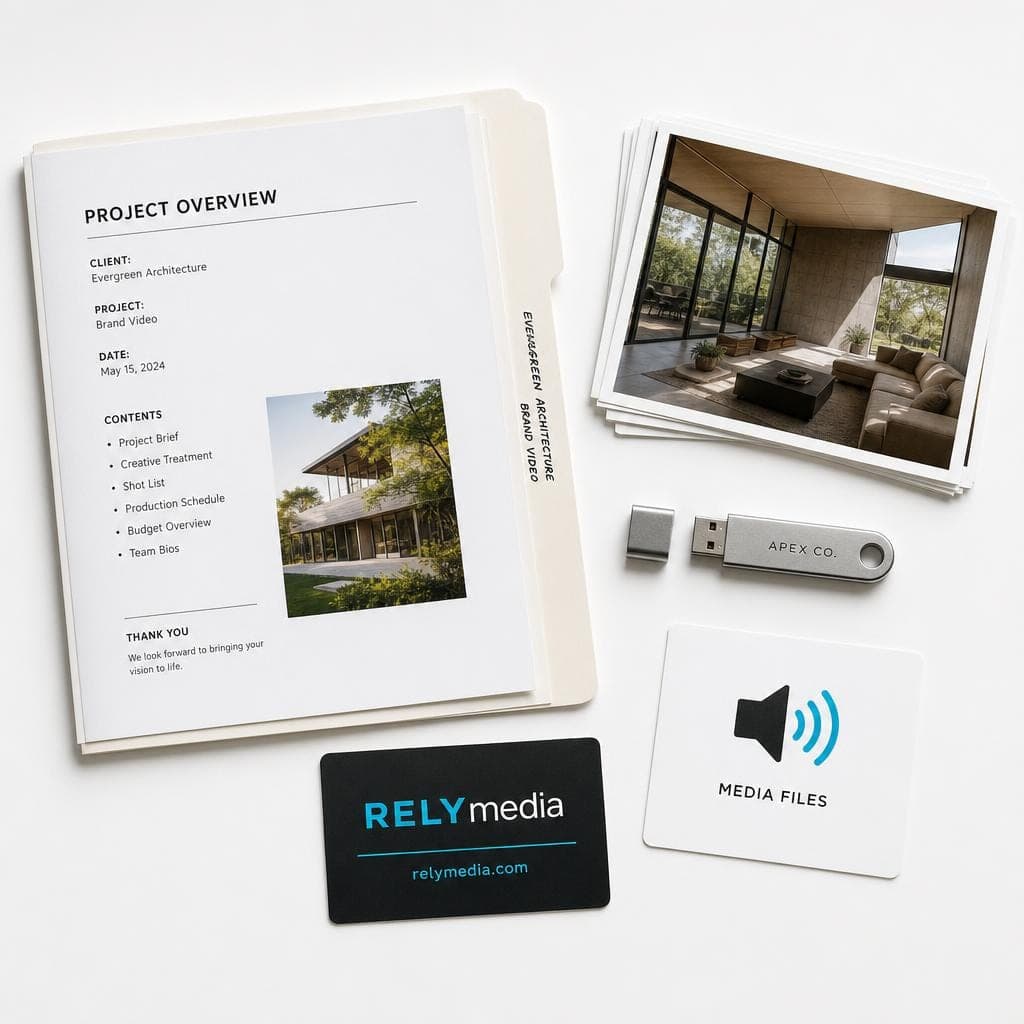
Portable Backup and File Backup
A drive can provide a portable backup for personal files, photos, or project materials and support limited system backup workflows. Important data still deserves multiple copies in separate locations.
Bootable Media and System Recovery
IT teams use bootable media and emergency boot media for operating-system tools, computer diagnostics, computer repairs, and system recovery. Microsoft documents USB recovery drives and USB boot procedures for supported Surface devices.
Education, Events, and Media Sharing
Schools can distribute coursework and educational resources. Event and creative teams can preload presentations, schedules, video recordings, photos, and multimedia files.
Some car multimedia systems accept USB storage for music. Compatible recording devices may also use removable media for dash cam storage or video recording storage.
Branded USB Drives as Promotional Items
For businesses, branded USB drives can combine storage with brand exposure. They work as event giveaways, training tools, client kits, employee resources, or promotional items.
Useful preloaded catalogs, presentations, onboarding guides, or event resources give recipients a reason to keep the drive.
RELYmedia says it offers more than 600 custom flash drive models and can create custom shapes, sizes, colors, and materials. Explore custom options.
USB Flash Drive Data Security
For sensitive information, consider data security, data protection, and access control before distribution.
Encryption and Password Protection
Encryption can protect stored information, while password protection can limit unauthorized access. RELYmedia offers USB data services including secure partitions, password access, AES encryption, drive naming, and data preloading.
This supports branded drives that also require secure data storage.
Ask RELYmedia about USB data services if your project needs preloaded files, encryption, secure partitions, or controlled content.
Malware and Infected Computers
Unknown removable media creates security risks. CISA warns that attackers can use USB drives to spread malware between computers.
Avoid unknown drives and scan media in accordance with your information security policy.
USB Flash Drive Limitations and Risks
Flash drives have limits:
- Limited write cycles and finite write cycles
- Potential data corruption
- Malware infection
- Unauthorized access
- Connector damage and physical wear
- Lower speed than many SSDs
- File size limitations
- Compatibility limitations
A solid-state drive, or SSD, suits heavier workloads. A flash drive wins when portability, distribution, and easy file access are most important.
USB Flash Drive vs SSD
| Factor | USB flash drive | SSD |
|---|---|---|
| Portability | Excellent | Very good |
| Typical performance | Moderate to fast | Usually faster |
| File distribution | Excellent | Less convenient |
| Large workloads | Limited | Strong |
| Branded promotion | Excellent | Rare |
| Moving parts | None | None |
For a promotional campaign, ask RELYmedia to match drive specifications to your audience, content, quantity, and deadline.
How to Use a USB Flash Drive
Most drives require only a few steps:
- Insert the drive into a compatible USB port.
- Wait for drive recognition.
- On Windows, open File Explorer, then check This PC or My Computer.
- On macOS, open Finder or check the Desktop and Devices areas.
- Copy, move, rename, or manage files.
- Wait until transfers finish.
- Use safe removal or proper ejection before unplugging.
Proper ejection helps avoid interrupting an active write.
How to Format a USB Flash Drive
Formatting a USB drive prepares the storage with a chosen file system. Formatting may erase existing information, so back up needed files first.
In Windows, File Explorer provides a Format option for supported workflows. Microsoft documents this approach for certain USB recovery drives.
On macOS, open Disk Utility, select the device, and choose Erase. Apple provides FAT and exFAT choices for Windows-compatible storage.
Use FAT32 when broad compatibility is important, and its 4GB file size limit is acceptable. Choose exFAT for larger cross-platform files. NTFS suits many Windows workflows. macOS Extended fits specific Mac-only needs.
How to Recover Data From a USB Flash Drive
When data loss happens, stop writing new information to the drive.
Start with troubleshooting:
- Check the USB connection
- Try another USB port
- Test another computer
- Confirm drive recognition
- Look for deleted files in the Recycle Bin or Trash, where applicable
Next, reputable data recovery, backup, or recovery software may help recover files. A recovery scan may identify recoverable files. Save recovered data to an alternate storage location, not the damaged device.
For severe damage or critical files, professional data recovery may be safer.
A Brief History of USB Flash Drives
The history of USB flash drives grew from the personal computing revolution of the late 1990s. Users needed better portable storage than floppy disks and Zip drives.
Advances in NAND technology, NAND flash memory, and the USB protocol created a practical path forward. M-Systems became associated with the early DiskOnKey around 1999 and 2000. Early commercial devices had capacities of around 8 MB. Today, flash storage can reach 1 TB and beyond.
How to Choose the Right USB Flash Drive

Before buying, ask:
- What storage capacity does the audience need?
- Which connector fits the host devices?
- Do users need Windows, Mac, or cross-platform access?
- How important is fast data transfer?
- Does the project require encryption?
- Will users store documents, photos, music, or videos?
- Is it for backup, education, marketing, or recovery?
- Does the drive need custom branding?
For bulk orders, consider quantity, delivery date, imprint area, packaging, and preload requirements.
Several options look similar?
Contact RELYmedia and compare models against your actual use case rather than choosing based on capacity alone.
Ready to print your team's name on premium apparel?
Fill in your details and a RELYmedia specialist will come back to you with a custom quote — fast turnaround, no obligation.
- ⚡Same-day response on business days
- 🎨Free design assistance included
- 🚚Rush order & fast delivery available
- 💰Price beat guarantee on every order
Shop custom USB flash drives
See all classic usb flash drives
RMC12 Swivel USB Flash Drive
Price on request
View product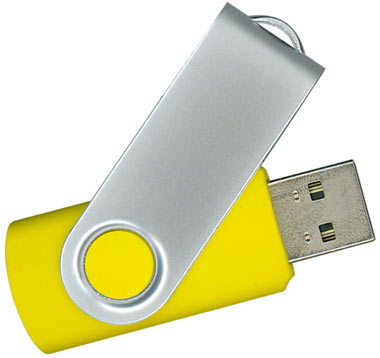
RMC02 Swivel USB Flash Drive
Price on request
View product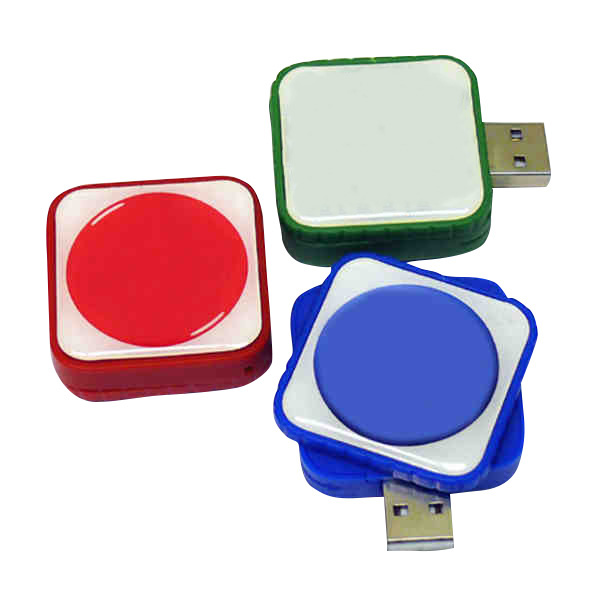
RMC169 USB Flash Drive
Price on request
View product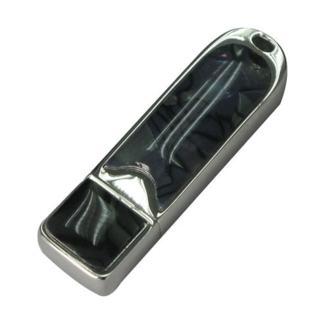
RMC167 USB Flash Drive
Price on request
View product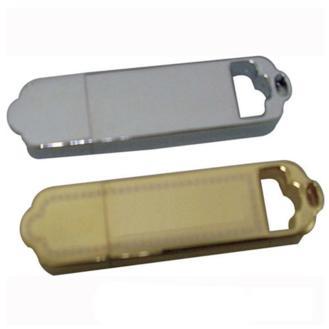
RMC166 USB Flash Drive
Price on request
View product
RMC165 USB Flash Drive
Price on request
View product
RMC164 USB Flash Drive
Price on request
View product
RMC163 USB Flash Drive
Price on request
View product
USB Flash Drive FAQs
Is a thumb drive the same as a flash drive?
Usually, yes. Thumb drive, pen drive, USB drive, USB stick, and flash drive are common terms for removable flash storage.
What does a USB drive do?
It stores, transfers, backs up, and shares files through a compatible USB connection.
Is USB-C faster than USB-A?
Not automatically. Connector type and transfer specification are separate. Actual speed depends on the supported USB standard and hardware.
Can a USB flash drive get malware?
Yes. Removable storage can carry malware from an infected computer to another system.
Can you recover deleted files?
Sometimes. Success depends on later writes, corruption, damage, and memory condition.
What size USB flash drive do I need?
Match capacity to your files. Document storage requires less space than video, gaming, software, or large system backups.
Conclusion
A good USB flash drive balances portability, capacity, transfer speed, compatibility, durability, data retention, and security. The best choice fits your files, devices, users, and purpose.
For organizations, the decision also includes branding, distribution, preload needs, deadlines, and user value. RELYmedia brings those pieces together through custom flash drives, technology products, data services, and branded promotional solutions. Its site highlights custom models, bulk ordering, fast turnaround, and secure USB data-service options.
Request a RELYmedia quote
Reach out when you are ready to turn practical USB storage into a branded product people have a reason to keep and use.
Frequently asked questions
Is there a difference between a USB stick and a flash drive?
In common use, there is usually no difference. USB stick, flash drive, USB drive, thumb drive, pen drive, and flash disk typically refer to the same type of compact, removable storage device that uses flash memory. These drives plug into a compatible USB port and are generally recognized automatically by the operating system.
How do I find my USB drive on my computer?
After you plug in a USB flash drive, the operating system usually recognizes it automatically. In Windows, you typically access it through File Explorer, which is also where the built-in Format option appears for supported workflows. On macOS, you can manage and format the drive in Disk Utility by selecting the device.
What are the disadvantages of a USB flash drive?
Flash drives can fail from connector damage and long-term physical wear, even though they have few moving parts. Unknown or untrusted USB media also creates security risks because attackers can use USB drives to spread malware between computers. For heavier workloads, an SSD is generally better suited than a flash drive.
What do you use a USB flash drive for?
A USB flash drive is used for portable storage and offline file transfer, such as moving documents between computers, carrying presentations, and sharing photos or multimedia. It can also serve as a portable backup when cloud access is inconvenient. IT teams also use USB drives for bootable media, diagnostics, and system recovery tools.
What format is a USB flash drive?
A USB flash drive can be formatted with different file systems depending on your devices and file sizes. Disk Utility on macOS supports Mac OS Extended, MS-DOS FAT, and exFAT, and Apple notes FAT and exFAT are Windows-compatible formats. exFAT is often best for mixed Windows and Mac use with large files.
What is a bootable USB flash drive?
A bootable USB flash drive is a USB drive prepared with operating-system tools so a computer can start recovery or diagnostic utilities from it. IT teams use bootable or emergency boot media for computer diagnostics, repairs, and system recovery. Microsoft documents USB recovery drives and USB boot procedures for supported Surface devices.
Shop this
Need branded USB flash drives? We print them.
Bulk pricing, three free mockups, real quotes back the same business day.